

 Français
  Español
  Deutsch
  Italiano
  Português
 Creating a Logo With AI: What Works, What Gets in the Way
An image generator offers symbol ideas, not a finished logo. How to explore, test, have it vectorized, and check before adopting yours.
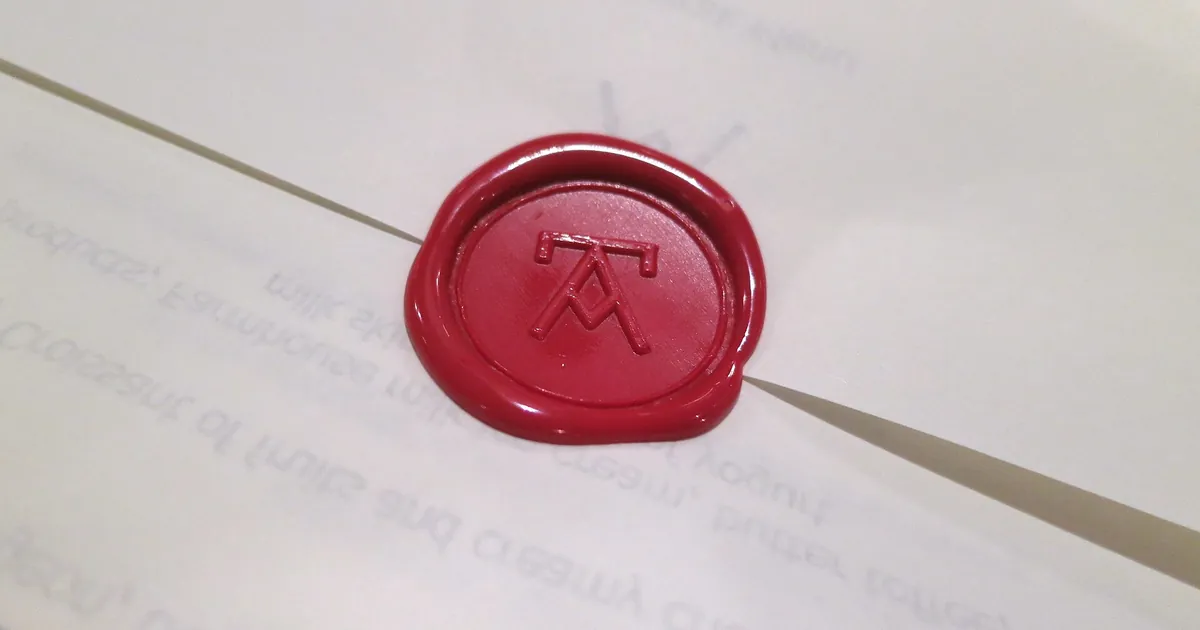
A baker is opening her bakery next month and has no budget for a graphic designer. She types "logo for a bakery, modern and elegant" into an image generator and gets twenty options in five minutes. She likes three. She picks one, has it printed on her bread bags, and discovers that the bakery's name is spelled "Le Fournli," that the drawing turns into a gray smudge on the rubber stamp, and that the stylized wheat looks a lot like a supermarket chain's sign.
None of these three problems is inevitable. Each comes from a step she skipped. An image generator is very good at exploring symbol ideas. It doesn't, by itself, deliver a usable logo.
What AI does well for a logo
It's good for the searching phase. In an hour, you can see thirty ways of representing an ear of wheat, a loaf, a bicycle wheel, or a hand. You quickly spot what you like and what you don't, something words alone make difficult. The brief you'd give a graphic designer becomes clearer after this exploration, even if you never hire one.
It's less good for the rest, and these points show up with most tools:
- Text. Letters often come out distorted or reversed. The subject deserves its own article: readable text in an AI image.
- Format. An image generator produces pixels. A logo must be able to be enlarged for a sign and reduced for a stamp without losing sharpness, which requires a vector file. A few tools advertise vector output: export a test file and enlarge it a lot before believing them.
- Simplicity. Generated images tend to add details, gradients, shadows. A good logo has very few.
- Repetition. You won't get exactly the same drawing in the next generation, which complicates variants (horizontal, square, one color).
Explore the symbol, without the text
Ask for the symbol alone, without the bakery's name. Describe a flat, simple graphic, impose few colors and a plain background, and say what the logo should evoke without drawing it literally.
flat vector-style logo mark for a village bakery, a single wheat ear whose grains form the outline of a loaf of bread, two colors only (dark brown on cream), thick uniform lines, centered on a plain white background, no text, no gradient, no shadow, simple enough to be carved into a rubber stamp
The last detail, the stamp, is useful: it pushes the tool toward a simple drawing. To reduce clutter, you can draw on the logic of the negative prompt: name one or two elements to leave out, not a list.
Run several generations and change only one element at a time, such as the central subject or the line style. That's the method of iterating on a prompt, applied to images. For style, the vocabulary of artistic styles gives you terms like "linocut," "pictogram," or "flat color areas."
Put it through the reality test
Before getting attached to a drawing, impose on it the constraints the real world will impose on it anyway.
- Shrink it. Display it at the size of a postage stamp. If you can no longer recognize what it represents, it's too busy.
- Turn it black and white. A logo that holds only through its shades won't survive a stamp or a photocopier.
- Invert it. Put it on a dark background. Fine details often disappear.
- Picture it on three surfaces. Paper bag, shop window, profile picture on social media. If one of the three is a problem, you know where to touch it up.
The drawing that survives these four tests is rarely the one you liked most at first glance. It's often the plainest.
From drawing to usable file
Once you've chosen the symbol, three steps remain, outside the generator.
Redraw or vectorize it. You can have a graphic designer redraw it from the image: that's a much shorter job than a full creation. You can also convert it yourself with vector drawing software that can trace outlines. Check the result at high magnification, because the edges are sometimes irregular.
Add the text separately. Write the business name in a layout or drawing program, using a font whose license you've checked. The text stays correct and editable, and you can adjust the spacing with the symbol.
Prepare the variants. Horizontal version, square version, one color, dark background. A vector file gives you these easily, a generated image very hard.
Check before adopting
A generator doesn't know whether its drawing resembles an existing logo. You have to check.
- Do a reverse image search with your logo, and look at the signs close to yours, especially in your industry.
- Consult the trademark database of the INPI (the French intellectual property office), which is freely accessible, to see whether a similar mark exists in your category of activity. In other countries, use your national trademark office's database.
- If you plan to register the logo as a trademark, or if you have a serious doubt, ask an intellectual property attorney or a lawyer. What will be accepted can't be guessed, and nobody can guarantee it without an examination.
- Reread your tool's terms on commercial use of images. This article details the points to check, including one that is often misunderstood: a generated image isn't necessarily protected by copyright, which can make it harder to defend your logo against a copy.
One evening to get clear
Take your business and write in three lines what the logo should evoke, for whom, and on which surfaces it will live. Run ten generations of the symbol alone with the prompt above, adapted. Keep the two simplest, put them through the four tests, and show the winner to three people without saying anything: ask them what they see in it. If they don't guess your trade, start over with a different central object. When one of the two versions holds up, ask a graphic designer for a vectorization quote: you'll arrive with a clear direction, and they'll have much less to guess.
Read next
AI images
Consistent Characters in AI Images: The Image-by-Image Method
Character sheet, reference images, Midjourney, Stable Diffusion: how to keep the same face and the same outfit from one image to the next.
5 min read
AI images
Product Photos With AI: Possibilities and Limits
Changing the backdrop of a real photo, creating a mood, avoiding misleading the customer: what AI allows for illustrating a product, and what it distorts.
4 min read
AI images
Realistic AI portraits: avoiding the plastic look
Smooth skin, vacant stare, catalog smile: what gives away an AI portrait, the words to remove from your prompt, and the ones that make a face believable.
4 min read