

 Français
  Español
  Deutsch
  Italiano
  Português
 Inpainting: Fix Part of an Image Without Redoing It All
A six-fingered hand, an extra object, botched text: how to mask the area and regenerate only that part, with an example prompt and the limits to know.
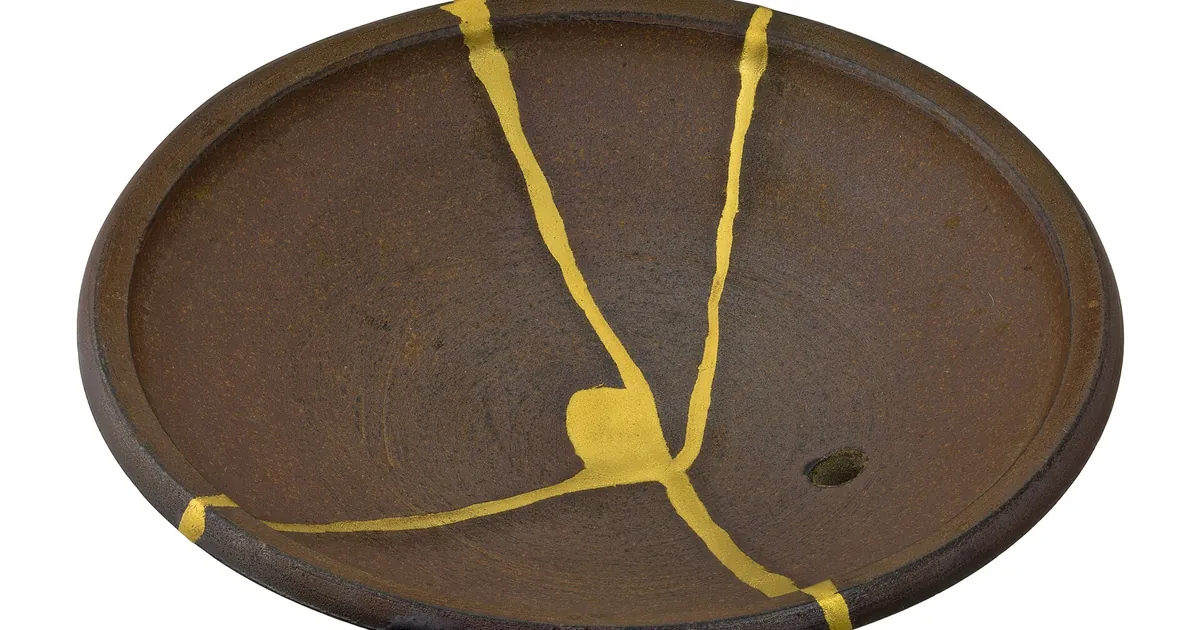
You spent an hour on the illustration of a Christmas market for your association's newsletter. The composition is good, and so is the light. But the chestnut vendor in the center is holding his paper cone with six fingers. Regenerating the whole image would make you lose everything that worked, with no guarantee that the new hand would be better.
Inpainting answers this case. You mark an area with a mask, describe what should be there, and the tool regenerates only that part while keeping the rest of the image. Depending on the tool, the feature goes by different names (generative fill, area retouching), and most of the big generators and photo-editing programs offer a version of it. Look in the editing options of the one you use.
The fixes where it works well
Inpainting is effective for small, localized flaws:
- An extra hand or finger, a misplaced foot.
- A stray object: a floating glass, a strange shadow, a distracting element in the background.
- A detail to change: the color of a garment, a hat, a sign replaced by a wall.
- A small piece of botched text, provided you replace it with a flat area rather than with new letters. For the text itself, it's better to add it by hand: see Readable Text in AI Images.
The steps for a good fix
- Open the image in your tool's editing feature, not in a new prompt.
- Draw the mask around the flaw, extending a bit beyond it. A mask that's too tight leaves visible edges that give the retouching away. Include a little of what surrounds the area so the tool can match the light and texture.
- Write a prompt that describes only what should appear in the area. No need to redescribe the whole image.
- Generate several attempts and compare. The first version isn't always the best.
- Check the seams: the light, the grain, the colors at the edges of the mask.
For the chestnut vendor's hand, the prompt for the area looks like this:
a gloved hand with five fingers holding a paper cone of roasted chestnuts, natural proportions, same warm lantern light from the left, same painted style as the rest of the image
It says nothing about the market, the sky, or the crowd. It asks for what you want to see in the area, with a reminder of the light and style so the blend is clean. To remove an object, describe what should take its place: "simple cobblestone ground, same lighting" rather than "no cup." If the logic of exclusion interests you, it's detailed in the article on the negative prompt.
Where inpainting fails
The limits recur from one tool to the next:
- Area too large. The bigger the mask, the more freedom the tool has, and the less faithful the blend. To change half the image, a new generation is more suitable.
- Difficult hands. They remain a weak point: plan for several attempts, and think about hiding them in the composition (a hand in a pocket, a glove) when you can.
- Style matching. In a very distinctive style (engraving, watercolor), the corrected area can stand out like a collage. Mention the style in the prompt for the area.
- Faces. Fixing a detail can change the expression or the likeness. For a series, the article on the consistent character gives methods.
For a minor flaw, a traditional photo-editing program is sometimes faster: a clone stamp to remove an object, a brush to fix a color.
Your next retouches
Find the last image you threw away because one detail was botched. Open it in the editing tool, mask only that detail, and run four attempts with a one-line prompt. If one of them works, you've just rescued an image without redoing the rest, and you know going forward what mask size your tool handles well.
Read next
AI images
Creating a Logo With AI: What Works, What Gets in the Way
An image generator offers symbol ideas, not a finished logo. How to explore, test, have it vectorized, and check before adopting yours.
5 min read
AI images
Consistent Characters in AI Images: The Image-by-Image Method
Character sheet, reference images, Midjourney, Stable Diffusion: how to keep the same face and the same outfit from one image to the next.
5 min read
AI images
Product Photos With AI: Possibilities and Limits
Changing the backdrop of a real photo, creating a mood, avoiding misleading the customer: what AI allows for illustrating a product, and what it distorts.
4 min read