

 Français
  Español
  Deutsch
  Italiano
  Português
 Effective Midjourney prompts: the method and the useful parameters
Structure, parameters, reference images and before/after: get the image you had in mind from Midjourney, not a lucky draw.
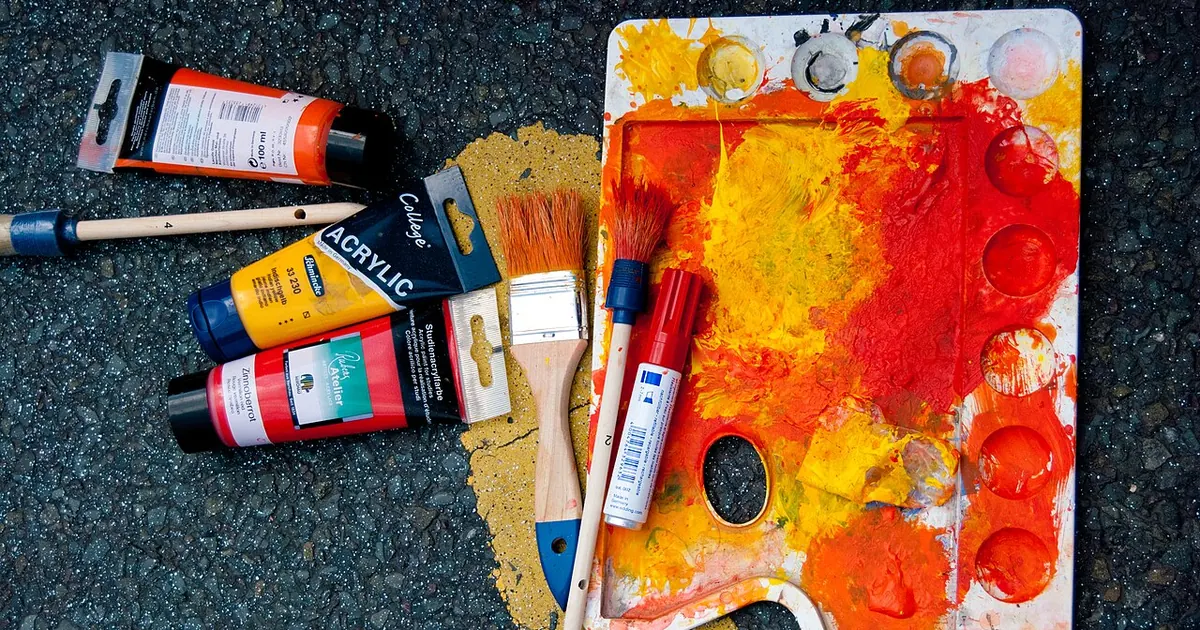
Type beautiful handmade wooden table, very realistic, high quality, 4k into Midjourney and you'll get a plausible image, but not one a cabinetmaker would put on his website. Nothing says where the table is, where the light comes from, or what should catch the eye. Midjourney fills those gaps with the most expected option it has, and the words "beautiful" or "high quality" teach it nothing.
Here's the same request, written like an order to a photographer:
product photograph of a handmade solid oak dining table in a small woodworking workshop, visible grain and hand-cut joints, wood shavings on the floor, soft window light from the left, shallow depth of field, muted warm palette --ar 3:2 --raw --s 50
The subject is precise, the setting tells the story of the trade, the light has a direction, and the trailing parameters set the format and limit automatic embellishment. The rest of this guide breaks down these choices. Midjourney evolves fast: the parameters cited below match its documentation at the time of writing, and a quick check on the Parameter List page is a good habit.
Build your prompt in this order
A Midjourney prompt has two parts: the text that describes the image, then the parameters, which start with -- and always go at the very end. For the text, this order prevents most omissions.
- The type of image: product photograph, watercolor, vector illustration, engraving. This is the choice that weighs most on the look, and forgetting it amounts to letting Midjourney decide.
- The subject: what we see, with the details that really matter. "A baker" stays vague; "a floury country loaf, scored with a cross" takes shape right away.
- The setting: where the subject is, and what's around it.
- The light and the framing: window light, backlighting, wide shot, top-down view. The photo vocabulary gives you the right terms.
- The palette and the mood: two or three named colors say more than "warm mood."
Write in English if you want the most predictable result. Midjourney understands other languages, but common practice is still English: compare on your own case if you're set on writing in French. And prefer simple sentences to lists of 40 keywords, because every word you add dilutes the others a little.
A simple test before you launch the generation: read your prompt and ask yourself whether two illustrators would draw roughly the same image. If they'd head in opposite directions, a decision is missing.
The parameters that really change the result
No need to know them all. These cover almost every common use.
| Parameter | What it does | When to use it |
|---|---|---|
--ar 3:2 | Image aspect ratio | Always, as soon as the image has a destination (banner, post, poster) |
--s 50 or --stylize 50 | Strength of Midjourney's own style, from 0 to 1000, 100 by default | Low to stick to the prompt, high for a freer look |
--raw | Reduces automatic styling | Realistic photo, product, anything that should stay understated |
--no text, logo | Excludes elements | For one or two unwanted elements, not a long list |
--chaos 30 | Variety between the images in a single grid, from 0 to 100 | Exploration phase |
--weird 100 | Pushes toward the unexpected | Offbeat visuals, in small doses |
--seed 1234 | Starts from the same starting point | Comparing two variants of a prompt |
--sref and --sw | Style reference and its weight | Keeping the same signature look across a series |
--iw 1.5 | Weight of the reference image, from 0 to 3 | When your starting image should count for more than the text |
--v 7 | Choice of model version | Reproducing an old prompt, or accessing a feature that stayed on that version |
A few subtleties prevent annoying errors. --raw is the syntax given by the current documentation. --style raw, which you still read in many tutorials, comes from older versions: on a version earlier than 8, check which one is accepted. --quality appears in the compatibility table for versions 6 and 7, not for the 8 family. --seed doesn't guarantee a pixel-for-pixel identical image: on the 8 family, the documentation speaks of a 99% identical result.
Multi-prompts, with their double colon (space:: ship), are often recommended in old tutorials. The current compatibility table seems to reserve them for older versions: look at the Version article in the documentation before building a method on them.
Three ready-to-adapt prompts
Replace each variable in brackets, in English, then remove the brackets.
For a product photo, on the website of a craftsperson or a small online shop:
product photograph of [PRODUCT], made of [MATERIAL], placed on [SURFACE], in [LOCATION], soft daylight from the left, visible material texture, shallow depth of field, [2 OR 3 COLORS] palette, generous empty space on the right side of the frame --ar 3:2 --raw --s 50 --no text, logo, watermark
The empty space on the right leaves you room to put a title in your layout tool.
For an illustration for an association newsletter, or for course material:
flat vector illustration of [SCENE IN ONE SENTENCE], simple geometric shapes, no outlines, limited palette of [3 COLORS], friendly and calm mood, plain [COLOR] background, wide composition for a newsletter header --ar 3:1 --s 100
For a poster with a short word, useful for a restaurateur announcing an event. Put the text in quotation marks and keep it very brief:
vintage lithograph poster for a neighbourhood restaurant, [DISH OR INGREDIENT] as the central illustration, large hand-drawn lettering reading "[TWO OR THREE WORDS OF TEXT]", grainy paper texture, palette of [2 COLORS] and cream, bold simple composition --ar 2:3 --s 150
Check every letter. Text rendering has improved, but a typo is still possible and no prompt rules it out. For a visual that will be widely distributed, add the text yourself in layout software.
You can also have a chatbot prepare the prompt from a description in your own words, which helps when you're still looking for yours:
You're preparing a prompt for Midjourney. Here's what I want to get: [DESCRIPTION IN PLAIN LANGUAGE]. Final use: [MEDIUM AND FORMAT].

Write a prompt in English of 60 words maximum, in this order: type of image, subject, setting, light, framing, palette. Use no vague adjectives like beautiful or stunning, and don't cite any artist. Add at the end the --ar parameter suited to the medium.

If a piece of information is missing to decide on the look, ask me at most three questions before writing the prompt.
The chatbot doesn't necessarily know Midjourney's latest parameters: reread what it adds at the end of the prompt.
Reference images: style, content, character
Text has its limits. As soon as you want to hold a visual direction across a series, an image shows what words describe poorly. Midjourney offers several mechanisms that are often confused, and the choice depends on what you want to transfer.
Transferring a look with the style reference
--sref followed by an image's address picks up its look: palette, medium, texture, light, without copying its subject. --sw sets the strength of the transfer, from 0 to 1000, with 100 by default. It's the tool to reach for when a series of visuals should look like it came from the same hand. Preferably use images you created or hold the rights to, to avoid the issues covered in our article on commercial use of AI images.
Starting from an existing image
An image placed in the prompt influences both the content and the look. --iw sets its weight: 1 by default, up to 3 on recent versions. It's used to pick up a composition, or to start from a sketch.
Keeping a character or an object
Here, things depend on the version. The old character reference --cref is no longer supported by the 8 family. The Omni reference, --oref with its weight --ow, works only in version 7. On versions 8.1 and 8.2, the documentation points to the Edit Model, which accepts up to four reference images. The article on consistent characters details the method.
Iterate without starting from zero
The first grid is rarely usable as is, and that's normal. The mistake is rewriting the whole prompt on every try: you'll no longer know which word produced which effect. Change just one element at a time.
A work session often looks like this. You start with --chaos 30 and several grids to explore. When a direction appeals to you, you remove --chaos and tighten the prompt around what worked. Then you adjust --s: try 50, 100, and 250 on the same text to see where the right dosage lies. Finally, you lock a --seed to test the last word tweaks under comparable conditions.
Keep a record of what works: the full prompt, the version used, and a line on what you wanted to get. In six months, that prompt will save you time, as long as you know which version it was developed on.
If you'd rather start from a proven base, the AI images section of the YouPrompt catalog shows a real result before you buy. You'll see how other authors structure their prompts, then you'll adapt.
The pitfalls that come up most often
Writing the negation in the sentence. a street without cars can make cars appear, because the word stays in the prompt. Use --no cars, or better, describe what you want instead: empty pedestrian street at dawn.
Piling up quality words. masterpiece, ultra detailed, 8k, award winning takes up space without describing your image. Replace them with a concrete detail, like a texture or a light source.
Forgetting the format. A square visual can't be cleanly cropped into a banner. Choose --ar based on the destination from the very first try, because the composition changes with the format.
Trusting the image without looking closely. Fingers, reflections, objects held in hand, shirt buttons, letters on a sign: zoom in before publishing. Midjourney has improved a lot on these points, though not to the point of being reliable on every image.
Pasting in a dated tutorial. Many articles online describe parameters that have been removed or changed. If a command returns an error or changes nothing, look it up in the official documentation before insisting.
Forgetting that your images may be public. By default, what you generate is visible to and reusable by the community, and private mode is reserved for higher plans at the time of writing. So don't run a client's confidential visual without checking your plan.
If you plan to sell your prompts, specify the version tested and what doesn't work well, for example close-ups of hands. The guide on writing a listing that inspires trust shows how to present it.
For your next visual, take the first prompt in this guide and generate it three times, changing only --s: 50, 100, 250. In five minutes you'll know which dosage suits your use, and you can keep it as your starting setting.
Read next
AI images
Effective Stable Diffusion Prompts: Method, Weights, and Settings
Model choice, weight syntax, CFG, seed, and negative prompt: the method for Stable Diffusion images you can reproduce.
8 min read
AI images
Composing a scene: foreground, subject, background
Describing an AI image in three planes, with a sharp subject and a coherent background, avoids flat scenes where everything blends together. Method and a prompt to copy.
3 min read
AI images
Colors and mood: describing a palette to the AI
"Warm" means nothing to an image generator. Naming two or three colors, a light, and a saturation level produces a recognizable mood.
3 min read