

 Français
  Español
  Deutsch
  Italiano
  Português
 Generating images in ChatGPT: what changes in the prompt
In ChatGPT, you ask for an image in conversation and correct it one sentence at a time. How to describe the scene, add text, and iterate without starting over.
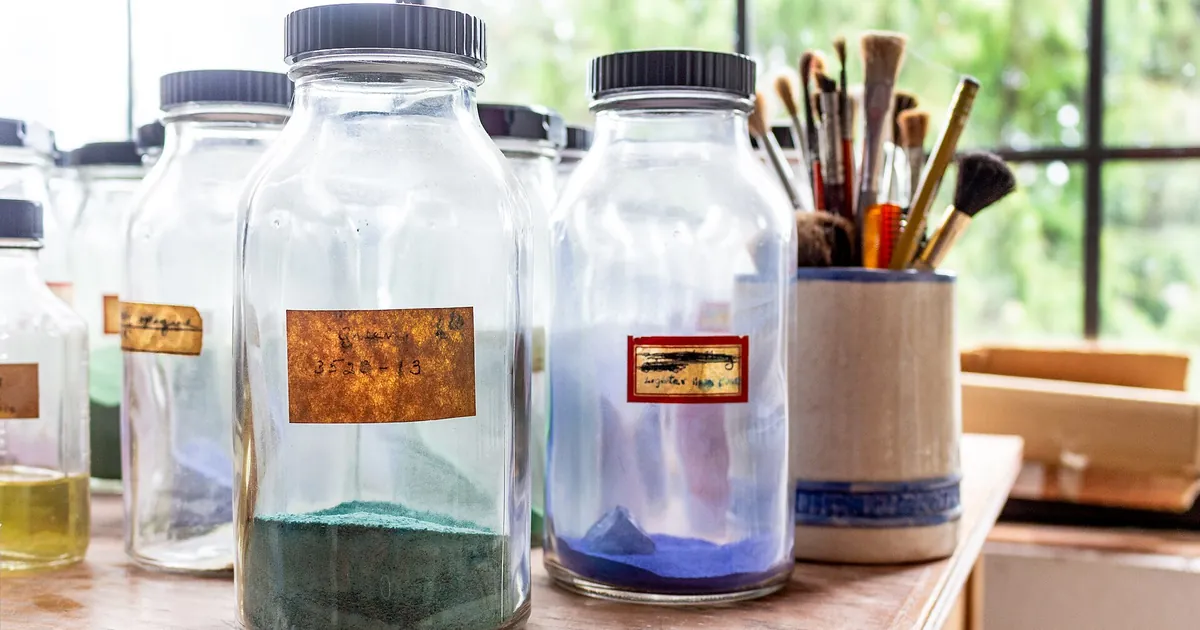
A baker wants a poster for her galettes des rois (Epiphany king cakes). She writes: "Make me a poster for my bakery." The image arrives, with a generic loaf of bread, a postcard font, and text that's partly unreadable. She starts over three times before realizing she isn't talking to an ordinary image generator.
In ChatGPT, the image is made inside a conversation. That changes how you write the prompt: you no longer need a list of keywords as with some tools, you can describe what you want in sentences, then correct step by step. The exact features keep changing, so check what your plan offers.
Describe a scene, with a purpose
A generator reads a scene better than a pile of adjectives. Say what's visible, where, in what light, and what the image will be used for. The baker gets much better results with this:
Create a vertical poster for a neighborhood bakery: a golden galette des rois, cut in half, sitting on a wooden board near a window, soft morning light. Cream background, understated, plenty of empty space at the top for the title.

Text to display, exactly: "Galette des Rois" large, then "Frangipane, starting January 2" small. No other text.

Style: natural food photography, no 3D rendering, no plastic crown.
Three choices make the difference. Mentioning the purpose (poster, vertical) settles the framing. The empty space is reserved for the text. And the text is given in quotation marks, word for word, with a ban on adding any. To help you find the vocabulary for framing and light, the guide to photo vocabulary provides precise terms.
Text in the image: check every letter
ChatGPT can write text in an image, but it still makes mistakes: an extra letter, a missing accent, a word that changes. Reread everything that appears, especially prices, dates, and names. If an error persists after two tries, remove the text from the image and add it with a layout tool. It will be faster.
Correct in conversation, one thing at a time
The big advantage is that you can talk to the image. Rather than rewriting the prompt, ask for the change:
- "Keep exactly this image, but replace the wooden board with a marble tray."
- "Make the light warmer, without changing the composition."
- "Same poster in square format for Instagram."
Change just one thing per message, and say what should stay. Without the words "keep exactly," the tool may redo everything else. If the conversation gets muddled after several tries, start a new one with the best prompt you've found; the logic is that of iterating on a prompt.
You can also attach an image and ask for a touch-up: changing a background, adding an object, switching to watercolor. Specify what must stay identical, for example the face, the pose, or the logo. Avoid uploading photos of people who haven't given their consent.
What's worth knowing before you publish
A generated image isn't free of all concerns: unintended resemblance to a brand or a person, a distorted logo, rights over the result. For a commercial poster, read our article on commercial use of AI images and the terms of your plan. And when you want a precise, repeatable image, also look at how to write an effective ChatGPT prompt for the basics common to all prompts.
To try
Take an image you would have paid a graphic designer for. Write the scene in three sentences, the exact text in quotation marks, and what must stay empty. Then correct just one detail at a time, in three messages at most.
Read next
By tool
Running an AI model on your own computer
What a locally installed AI model makes possible: privacy, the hardware you need, tools to get started, and how to adapt your prompts to a small model.
6 min read
By tool
GitHub Copilot Prompts: Comments, Context, and Chat
How to guide GitHub Copilot: write the comment that comes before the code, choose the chat context, set project rules, and review what it suggests.
4 min read
By tool
Microsoft Copilot prompts: Word, Excel, Outlook, and Teams
How to phrase your requests to Copilot in Word, Excel, Outlook, and Teams, with ready-to-adapt prompts and the checks you shouldn't skip.
4 min read