

 Français
  Español
  Deutsch
  Italiano
  Português
 Build Your Library of Reusable Prompts With Variables
Stop digging through your history. Turn your best prompts into templates with variables, store them simply, and keep only the ones that get used.
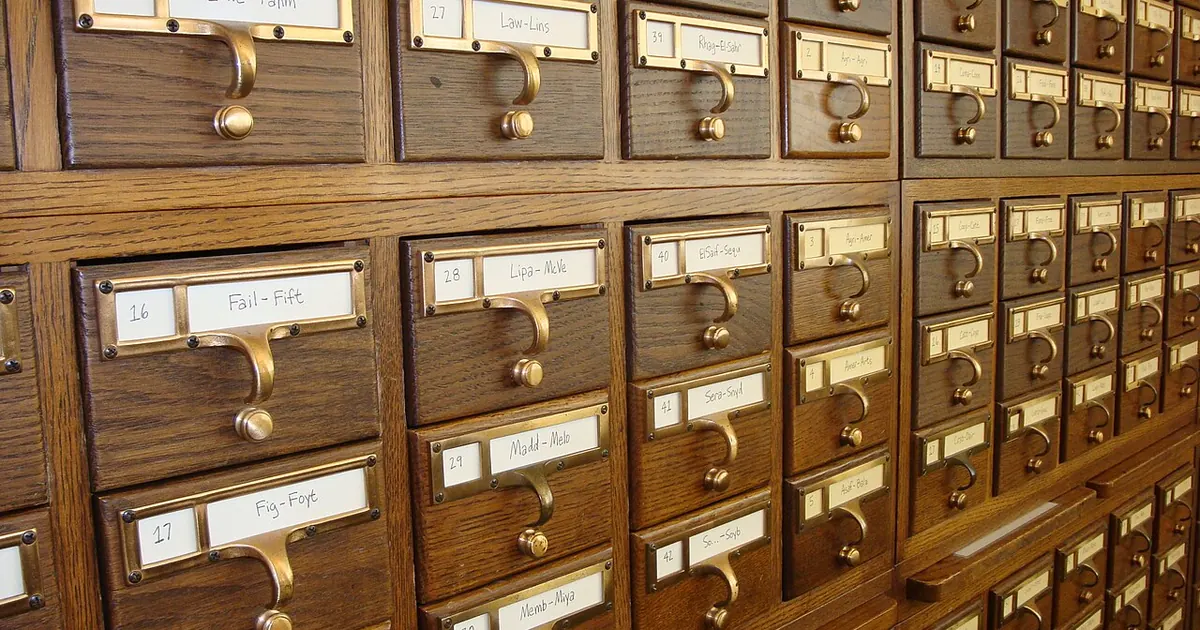
Last Tuesday, you spent twenty minutes tuning a prompt to follow up with a client, and it worked great. Today you go looking for it in your history, between a recipe and a question about your tax return, you can't find it, and you rewrite it, only worse. A prompt library fixes this problem, and it fits in a simple document.
The right tool is the one you already open
There's no need to look for a dedicated app. The criterion is speed: if finding a template takes longer than rewriting it, you'll stop using it.
| Medium | Fits if | Limit |
|---|---|---|
| Single document (Word, Google Docs, a note) | You have fewer than about twenty templates | Gets long to scroll through fast |
| Spreadsheet | You want to filter by use or record your tests | Not pleasant to read for long texts |
| Note-taking tool (Notion, Obsidian…) | You already have that habit | You have to open it and find your way around |
| Text expansion tool | You paste the same prompts several times a day | Setup effort, and less convenient to share |
| Built-in features (projects, GPTs, instructions) | You always work in the same tool | The template stays tied to that tool |
To start, take one document and keep it one click away. System instructions and projects can come later, for what applies to all your conversations.
From one-off prompt to template with variables
A successful prompt mixes two types of content: what never changes, and what changes every time. Turning it into a template means separating the two. Take an accountant who often has to chase clients for missing documents. Here's what she wrote one day:
Write an email asking Mr. Morel, the owner of the bakery, for the March bank statements and the missing flour invoices, by the 15th. Stay polite but firm, it's the second reminder. He's the type to forget. 5 lines maximum.
And here's the template drawn from that prompt:
Write an email to [CLIENT NAME], [CLIENT'S BUSINESS], asking for these documents:
[LIST OF DOCUMENTS]

Deadline: [DATE].
Reminder level: [1st request / 2nd reminder / final reminder before the file is put on hold].

Tone by level: polite for the first request, polite and firm for the second, firm and factual for the last, specifying what the delay is holding up: [ACTUAL CONSEQUENCE].

End with one simple action for the client: [UPLOAD TO THE CLIENT PORTAL / REPLY TO THIS EMAIL].

5 lines maximum, no apologies. Don't mention any penalty or legal deadline that I haven't specified.
A few rules make a variable effective:
- Name it clearly. [DOCUMENTS] says less than [LIST OF DOCUMENTS], and [DATE] less than [DEADLINE] when a template contains several dates.
- Indicate the possible choices when they're limited, as above for the reminder level.
- Don't make everything a variable. Beyond five or six variables, the template becomes a form you won't feel like filling out. Keep the rest fixed or split it into two templates.
- Add a safety instruction if a forgotten variable could go unnoticed: "If a bracket hasn't been filled in, stop and ask me for the information."
Before pasting in real information, check what you're sending to the tool. A reminder can easily be prepared with "Client A," and the name added in your email app. This article on privacy will help you set your rule.
To convert an existing prompt, you can also have the AI do the work:
Here is a prompt that worked well:

"""
[PASTE THE PROMPT]
"""

Turn it into a reusable template. Keep all the instructions on tone, format, and limits. Replace only what will change from one use to the next with variables in [CAPITALS IN BRACKETS], six at most.

Then give me:
- a short template name that starts with a verb
- one sentence saying when to use it
- the list of variables with an example value for each
Review the result: the AI sometimes removes a detail that made the original good.
One card per template, no more
For the library to stay useful six months from now, each template needs a bit of information around it. Five lines above the prompt are enough:
NAME: Follow up with a client for missing documents
WHEN: file blocked by documents not received
TESTED ON: [TOOL], on [DATE OF TEST]
WATCH OUT: check the deadline and the list of documents before sending
TYPICAL RESULT: [PASTE A GOOD SAMPLE OUTPUT]
The typical result is the line everyone skips and the one that helps most: in six months, it reminds you what to expect. The test date tells you when to check again, since tools change. Before adding a template, run it through the testing method, on at least two or three different cases.
Name each template by what it lets you do, starting with a verb: "Reply to a negative review," "Summarize a meeting." Then file them by main use. For a tradesperson, four headings are generally enough: clients, jobs, admin, communication. For a developer: code review, documentation, debugging, testing.
Maintain it without giving up your evenings
A library dies in one of two ways: nobody fills it, or it overflows. A simple rule prevents both. You add a template only the second time you do the same task. Once a quarter, delete what you haven't used in three months, and merge what overlaps.
If you share the library with a team, designate one person who approves changes and keep dated versions, so everyone uses the same template and knows why it changed.
You don't have to write everything yourself: the YouPrompt catalog offers tested prompts, with an excerpt and a real result visible before purchase, that you can adapt to your variables.
Create your document now, find the three prompts you've reused most in your history, and convert the first one. A library with three useful templates is already worth more than a history of a hundred conversations.
Read next
Getting started
Your Prompt Isn't Working: A 5-Question Diagnosis
Generic, off-target, too long, or wrong answers: five questions to ask yourself, in order, to find what's wrong with your prompt.
3 min read

Getting started
15 Everyday Prompts to Try Tonight
Meals, mail, quotes, appointments, studying: fifteen short prompts to copy as they are, with the brackets to fill in and the vigilance to keep.
4 min read

Getting started
When it's better not to use AI
A costly mistake, a two-minute task, an intimate message, confidential data: six situations where AI wastes your time or exposes you to risk.
4 min read